

Start with one real location.
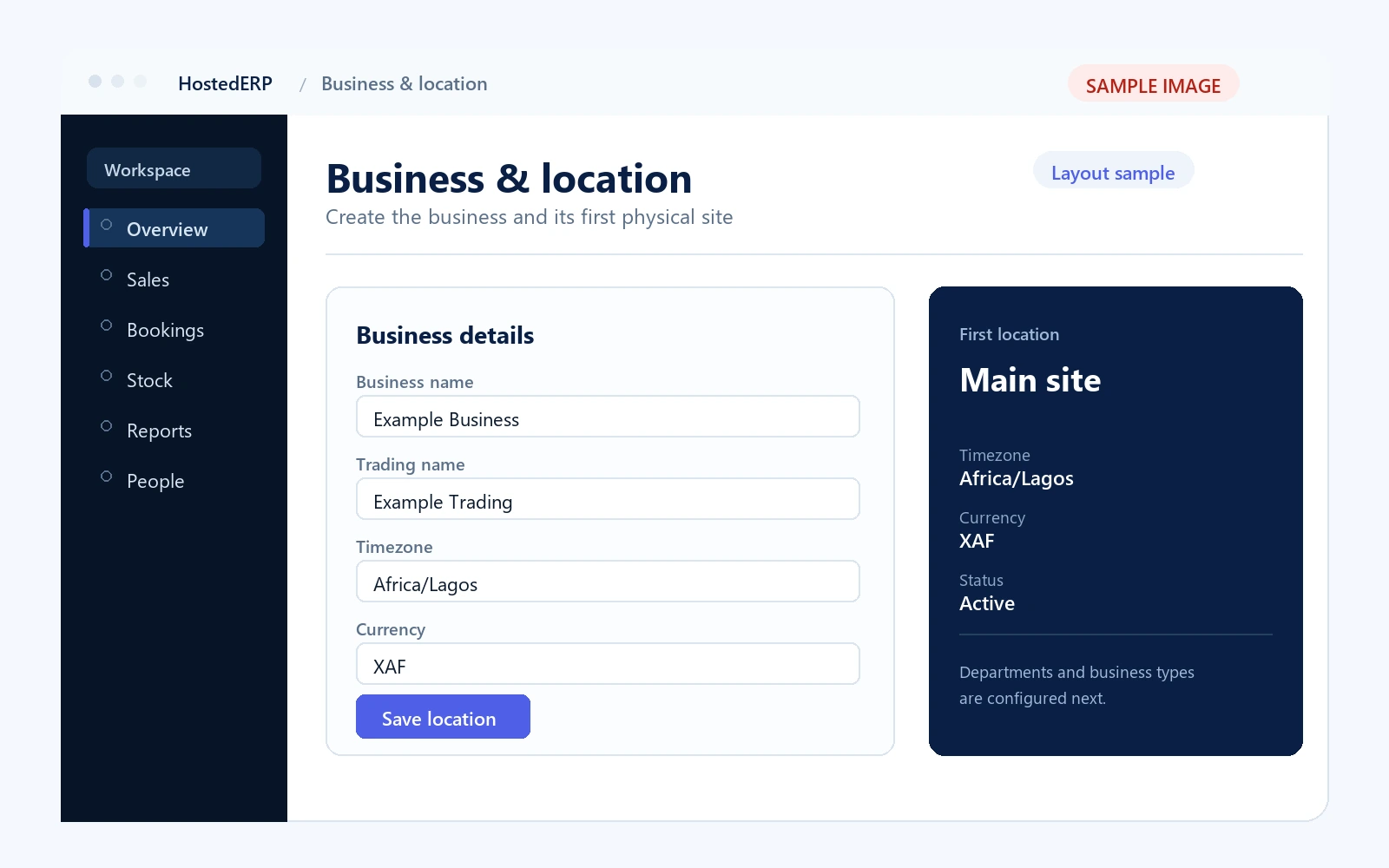
You as administrator create the business and its first physical location. A location is the site where work happens: a restaurant, a shop, a hotel, a warehouse or a mixed property.
Before the first service
Your first setup passYou are opening the account on a Monday morning. The first delivery arrives on Wednesday; the first guests arrive on Friday. You need the foundation in place before either happens.
Every sale, booking, stock movement and report is attached to a location. Setting the timezone and currency now prevents later reports from being read in the wrong day or currency.
Set the business name, legal or trading name, timezone, currency and the address used on receipts. Do not create a second location just to separate a department; departments belong inside a location.
Activate only the business types you run.
Business types determine which tools, stock pools and reports your team sees at a location. Turn on what you operate; leave the rest off until you need them.
- RestaurantTable service, kitchen tickets, recipes and restaurant reporting.
- SnackFast counter sales, direct stock and a simplified service flow.
- ReservationUnits, rates, bookings, check-in, key cards and checkout.
- Shop / WarehousePurchasing, central warehouse, department stock and physical counts.
A mixed property can run more than one type at the same location. A hotel with a dining room can run Reservation and Restaurant together; a retail counter can run Shop alongside them.
Extra business types add screens, stock pools and reports your team does not need. Add them when the work exists, not because they are available.
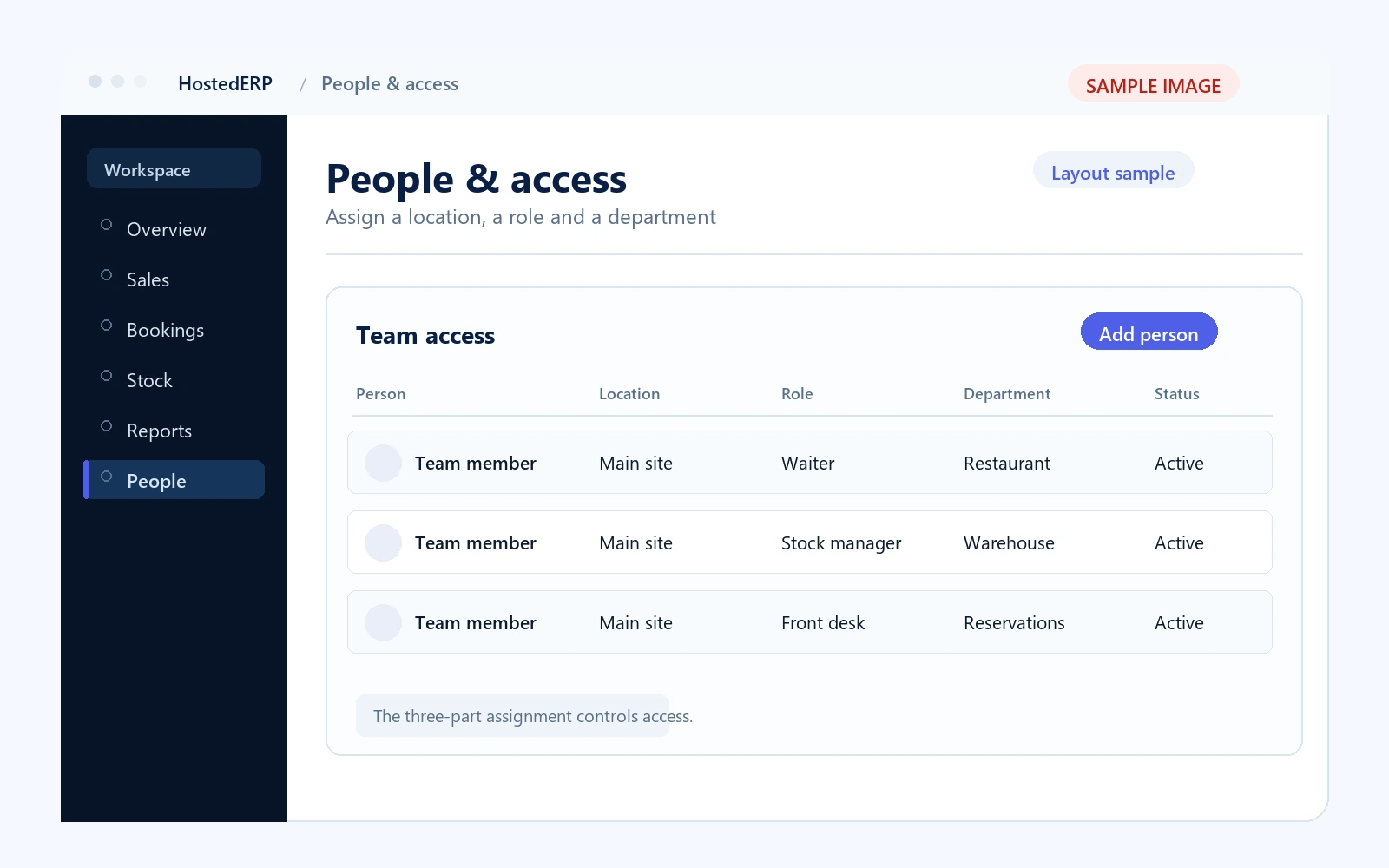
Assign a location, a role and a department.
Your administrator creates each person’s account and assigns three things: the location where they work, the role they perform and the department they belong to. That combination determines what they can see and do.
Deactivate an account when someone leaves; do not delete the record. The history of their sales, shifts and approvals must remain intact.
Build the catalogue before the first sale.
Add the products and services you sell, with a unit, price and category. Decide which items are sold directly from stock and which are composed dishes or services that consume ingredients or parts.
- Direct-stock items — a bottled drink, a packaged sandwich or a retail item. Selling one reduces that exact item.
- Recipes — a composed dish. Confirm the ingredient lines so the sale reduces the right quantities.
- Services — a room night or a service line that does not consume stock in the same way as a physical item.
Add suppliers only when you are ready to receive stock or record purchases. Supplier prices can be corrected when a delivery actually arrives.
Enter opening stock once, as a real count.
Opening stock anchors the calculated stock figure. Count what is physically on the shelf, in the storeroom or behind the bar; do not copy a supplier’s expected quantity.
- Count by product and by the stock pool that will hold it: main warehouse or department.
- Use the same unit that the product is bought and sold in.
- Record the count as an opening position, not as a purchase.
- Keep the count sheet; it is the evidence if the first stock report looks wrong.
Connect the physical layer.
A sale is not finished until the receipt prints, the kitchen sees the ticket or the guest’s key works. Test each device before the first real customer.
- Receipt printer — print a test receipt from the sale screen.
- Kitchen printer or screen — send a test order and confirm the ticket appears.
- Cash drawer / card terminal — confirm the payment step and the recorded payment method.
- Card encoder — confirm the bridge is running and encode a test card before a guest arrives.
Decide how the business reaches you.
You as administrator choose whether the business uses Heads-Up phone alerts. Each person then opts their own phone or tablet in. The alert reaches the right person wherever they are — at the desk, on the floor or away from the site.
- A report is ready to review.
- Stock crosses a reorder threshold.
- An expense is recorded.
- A booking payment or key card needs attention.
- A booking is confirmed or a guest arrives.
You choose the events worth interrupting someone for. The in-app bell keeps the full record, so a missed phone alert is not a lost notification.
Phone alerts are off until the business turns them on and the person grants permission on that device. Security alerts cannot be muted by an individual.
Open the first work session.
A work session — the shift — bounds the period your team is working. Opening it gives sales, payments and stock movements a place to belong and takes the starting stock snapshot.
You or your manager open the session before service. Staff should not open a second session for the same department while the first one is still running.
Two overlapping sessions draw from the same stock but account for different sales, which distorts both closing reports.
Run one tested first sale.
Before the first real customer, run a complete test transaction through the same path your team will use.
- Open the session and select the correct location.
- Add one item and confirm the price.
- Take payment and choose the payment method.
- Print the receipt.
- Confirm the stock effect on the product.
- Close the test session and review the shift report.
The location, role, catalogue, stock, device and session are connected. A mistake now is a setup correction, not a customer incident.
Setup checklist
Print this page or keep it open while you work. Tick each item only when you have checked the result in the app.
- Business and first location created; timezone and currency confirmed.
- Only the business types you run are active at that location.
- Your administrator has assigned location, role and department for each person.
- Products and services have prices and the correct stock behaviour.
- Recipes are confirmed where the product is composed.
- Opening stock is counted and recorded against the right pool.
- Receipt printer, kitchen output and card encoder are tested.
- The first work session can be opened and closed cleanly.
- One test sale reaches payment, stock and the shift report.